Parent info
Parts you need
Affiliate links — we may earn a small commission
Try this circuit in your browser!
Run the code, press the buttons and watch what happens — before you buy any parts. No account needed.
Open in Simulator →Your cat is about to lose its mind.
Imagine this: you put a little laser dot on the floor and walk away. The dot starts moving on its own — slow arcs, sudden darts, then it freezes for three seconds and vanishes. Your cat cannot stop chasing it. You didn’t touch anything. You’re reading a book.
That’s what we’re building. In 90 minutes. For about $24.
What you’ll need
| Part | What it does | Price |
|---|---|---|
| ESP32-S3 Dev Board | The brain. Runs the movement algorithm and hosts a web page. | ~$12 |
| SG90 Servo x2 | One rotates left/right (pan). One rotates up/down (tilt). | ~$3 each |
| KY-008 Laser Module | 5mW red laser. Mounts on the tilt servo. | ~$2 |
| Pan/Tilt Servo Bracket | Holds both servos in a proper camera-mount configuration. | ~$4 |
| Breadboard + jumper wires | Connects everything. No soldering. | ~$5 |
You also need: home WiFi and the free Arduino IDE.
Total: ~$24 | Time: ~90 minutes | Difficulty: ●●○○○
LASER SAFETY — read this first: Mount the bracket HIGH (shelf, door frame, ceiling). The laser must only point DOWN at the floor. The code enforces a hard 75° angle limit so it can never go horizontal. Never remove that limit. 5mW lasers are safe for floors — not for eyes.
How it works (60 seconds)
Think of it like a security camera — but instead of watching, it’s pointing. Two servos form a “pan-tilt” mount (the same thing camera tripods use). The ESP32 picks a random target angle for each servo and steps toward it smoothly, 1 degree at a time every 20ms. Every 20 seconds, the laser turns OFF for 3 seconds — simulating prey disappearing. Then a new random target, laser on, cat goes wild again.
Your phone connects to the ESP32’s web page over WiFi to switch between Auto mode (ESP32 drives it) and Manual mode (you drag a joystick on your screen).
Step 0: Assemble the pan/tilt bracket
Time: ~15 minutes
The bracket kit comes with two servo mounts and hardware. Follow the bracket’s instructions:
- The bottom servo (pan) rotates left and right. It stays fixed on the shelf.
- The top servo (tilt) rotates the laser up and down. It mounts on the pan servo’s horn.
- Hot-glue or zip-tie the KY-008 laser module onto the tilt servo’s top plate. Signal wire (S) pointing toward the ESP32.
- Mount the whole bracket HIGH — shelf top, door frame, top of a bookcase. Aim it at a clear floor area.
Check: Rotate both servo arms by hand. They should move freely. The tilt servo should physically stop well before reaching horizontal when the bracket is mounted correctly.
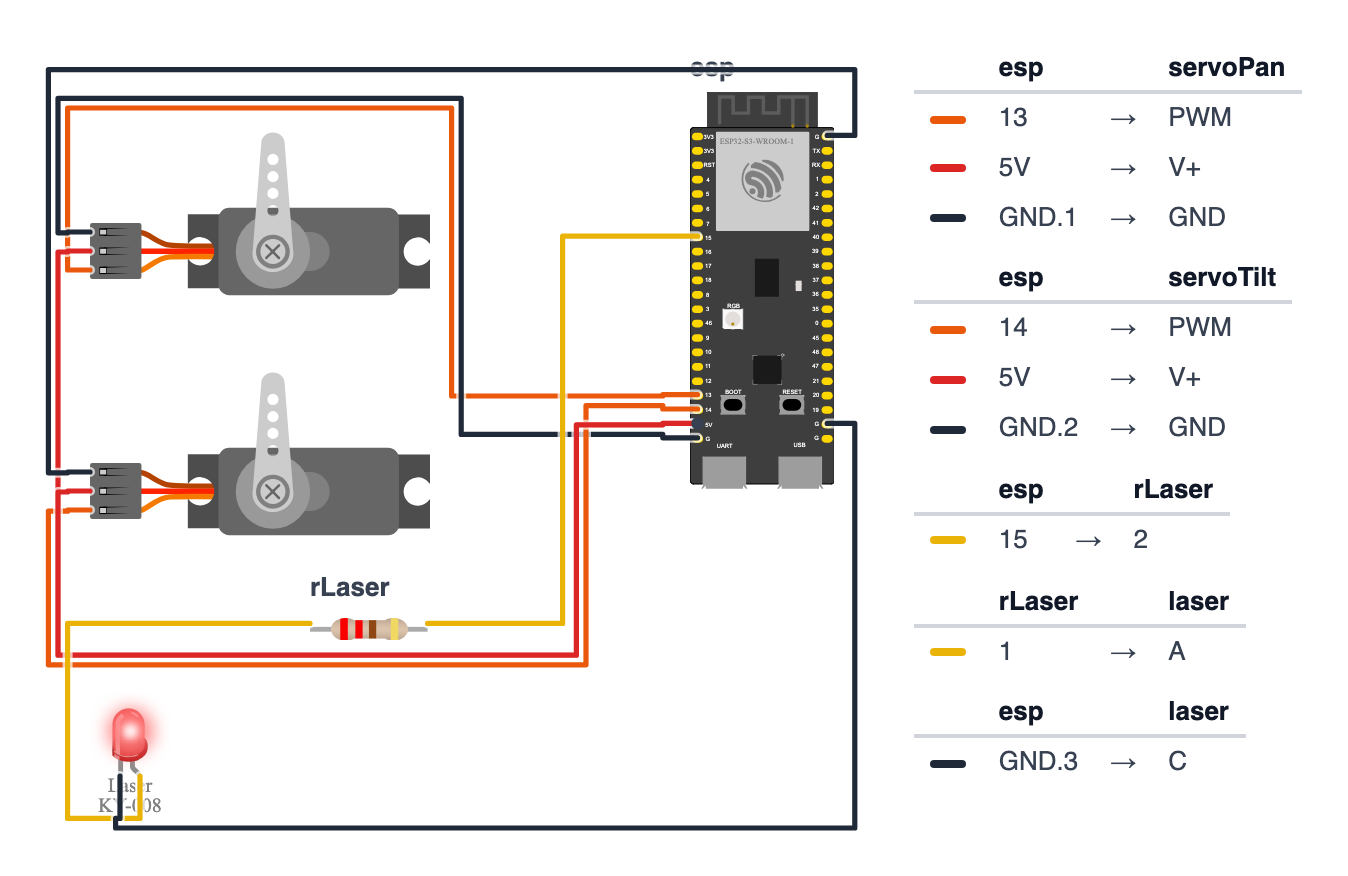
Step 1: Wire it up
Time: ~10 minutes
You’re connecting 9 wires total.
Pan Servo (rotates left/right):
- Signal (orange wire) → board GPIO 13 (C6: GPIO 5) — orange wire
- VCC (red wire) → board VIN (5V) — red wire
- GND (brown wire) → board GND — black wire
Tilt Servo (rotates up/down): 4. Signal (orange wire) → board GPIO 14 (C6: GPIO 4) — orange wire 5. VCC (red wire) → board VIN (5V) — red wire 6. GND (brown wire) → board GND — black wire
KY-008 Laser Module: 7. S (signal) → board GPIO 15 (C6: GPIO 3) — yellow wire 8. + (power) → board VIN (5V) — red wire 9. - (ground) → board GND — black wire
Check: Count your wires. 3 red (power), 3 black/brown (ground), 2 orange (servo signals), 1 yellow (laser). Board is NOT plugged in yet.
Common mistake: KY-008 has 3 pins labelled S, +, -. Some boards have them in a different order. Double-check the label on your specific module before connecting.
Good to know: The KY-008 already has a tiny resistor built into the module, so you don’t add one. The wiring picture shows a red LED with a 220Ω resistor in front of it — that’s just how the simulator draws the laser module.
Step 2: Upload the code
Time: ~10 minutes
Install these libraries first in Arduino IDE (Sketch > Manage Libraries):
ESP32Servoby Kevin HarringtonESPAsyncWebServerby Me-No-Dev
Then upload this sketch. Fill in your WiFi name and password before uploading.
The big picture first. This program has two jobs: move the laser automatically in a pattern that drives cats wild, and let you take over from your phone.
- The ESP32 is the brain. It runs a web server so your phone can connect.
- Two servo motors form a pan-tilt mount — one rotates left/right, one tilts up/down. They work like your neck: one axis at a time, but together they aim anywhere.
- The laser module turns on and off — simulating prey that appears and disappears.
- In Auto mode, the ESP32 picks random target positions and glides toward them 1 degree at a time. In Manual mode, your phone’s joystick sends the target directly.
A program is like a recipe. The computer reads it top to bottom and does exactly what’s written. Copy this recipe into Arduino IDE and upload it:
// ========== CHOOSE YOUR BOARD ==========
// Uncomment the line for YOUR board:
#define BOARD_S3    // ESP32-S3-DevKitC-1
//#define BOARD_C6  // ESP32-C6-DevKitC-1
// ========================================

#ifdef BOARD_S3
  #define PIN_PAN              13
  #define PIN_TILT             14
  #define PIN_LASER            15
#endif
#ifdef BOARD_C6
  #define PIN_PAN              5
  #define PIN_TILT             4
  #define PIN_LASER            3
#endif

#include <ESP32Servo.h>
#include <WiFi.h>
#include <ESPAsyncWebServer.h>

const char* ssid     = "YourWiFiName";
const char* password = "YourWiFiPassword";

Servo servoPan;
Servo servoTilt;

const int PAN_MIN  = 0;
const int PAN_MAX  = 180;
const int TILT_MIN = 10;
const int TILT_MAX = 75;

int currentPan  = 90;
int currentTilt = 45;
int targetPan   = 90;
int targetTilt  = 45;

bool autoMode = true;

unsigned long lastMoveTime  = 0;
unsigned long lastPauseTime = 0;
unsigned long pauseInterval = 20000;
unsigned long pauseDuration = 3000;
bool inPause = false;

AsyncWebServer server(80);

const char index_html[] PROGMEM = R"rawliteral(
<!DOCTYPE html><html><head><title>Laser Cat Toy</title>
<meta name="viewport" content="width=device-width, initial-scale=1">
<style>
  body { font-family: Arial; text-align: center; background: #1a1a2e; color: #eee; }
  h1 { color: #e94560; }
  button { padding: 15px 30px; margin: 10px; font-size: 18px;
           border: none; border-radius: 8px; cursor: pointer; }
  .auto { background: #e94560; color: white; }
  .manual { background: #0f3460; color: white; }
  #joystick { width: 200px; height: 200px; background: #16213e;
              border-radius: 50%; margin: 20px auto; touch-action: none;
              border: 3px solid #e94560; }
</style></head><body>
<h1>Laser Cat Toy</h1>
<button class="auto" onclick="setMode('auto')">Auto Mode</button>
<button class="manual" onclick="setMode('manual')">Manual Mode</button>
<div id="status">Mode: Auto</div>
<div id="joystick" onmousedown="startDrag(event)" ontouchstart="startDrag(event)"></div>
<script>
let dragging = false;
function setMode(m) {
  fetch('/mode?m=' + m);
  document.getElementById('status').innerText = 'Mode: ' + m;
}
function startDrag(e) {
  dragging = true;
  document.onmousemove = drag; document.onmouseup = stopDrag;
  document.ontouchmove = drag; document.ontouchend = stopDrag;
}
function drag(e) {
  if (!dragging) return;
  let joy = document.getElementById('joystick').getBoundingClientRect();
  let cx = joy.left + joy.width/2, cy = joy.top + joy.height/2;
  let x = (e.clientX || e.touches[0].clientX) - cx;
  let y = (e.clientY || e.touches[0].clientY) - cy;
  let pan  = Math.round(map(x, -100, 100, 0, 180));
  let tilt = Math.round(map(y, -100, 100, 75, 10));
  pan  = Math.max(0, Math.min(180, pan));
  tilt = Math.max(10, Math.min(75, tilt));
  fetch('/move?pan=' + pan + '&tilt=' + tilt);
}
function stopDrag() { dragging = false; }
function map(v, a, b, c, d) { return (v-a)*(d-c)/(b-a)+c; }
</script></body></html>
)rawliteral";

void setup() {
  Serial.begin(115200);

  servoPan.attach(PIN_PAN);
  servoTilt.attach(PIN_TILT);
  pinMode(PIN_LASER, OUTPUT);

  servoPan.write(currentPan);
  servoTilt.write(currentTilt);
  digitalWrite(PIN_LASER, HIGH);

  randomSeed(esp_random());

  WiFi.begin(ssid, password);
  while (WiFi.status() != WL_CONNECTED) {
    delay(500);
    Serial.print(".");
  }
  Serial.println("\nConnected! Open this IP in your phone browser: " + WiFi.localIP().toString());

  server.on("/", HTTP_GET, [](AsyncWebServerRequest *request){
    request->send_P(200, "text/html", index_html);
  });

  server.on("/mode", HTTP_GET, [](AsyncWebServerRequest *request){
    if (request->hasParam("m")) {
      autoMode = (request->getParam("m")->value() == "auto");
    }
    request->send(200, "text/plain", "OK");
  });

  server.on("/move", HTTP_GET, [](AsyncWebServerRequest *request){
    if (!autoMode) {
      if (request->hasParam("pan"))
        currentPan  = constrain(request->getParam("pan")->value().toInt(), PAN_MIN, PAN_MAX);
      if (request->hasParam("tilt"))
        currentTilt = constrain(request->getParam("tilt")->value().toInt(), TILT_MIN, TILT_MAX);
      servoPan.write(currentPan);
      servoTilt.write(currentTilt);
    }
    request->send(200, "text/plain", "OK");
  });

  server.begin();
}

void loop() {
  if (!autoMode) return;

  unsigned long now = millis();

  if (!inPause && now - lastPauseTime > pauseInterval) {
    inPause = true;
    digitalWrite(PIN_LASER, LOW);
    lastPauseTime = now;
  }
  if (inPause && now - lastPauseTime > pauseDuration) {
    inPause = false;
    digitalWrite(PIN_LASER, HIGH);
    targetPan  = random(PAN_MIN,  PAN_MAX);
    targetTilt = random(TILT_MIN, TILT_MAX);
  }

  if (inPause) return;

  if (now - lastMoveTime > 20) {
    lastMoveTime = now;

    if (currentPan < targetPan)   currentPan++;
    if (currentPan > targetPan)   currentPan--;
    if (currentTilt < targetTilt) currentTilt++;
    if (currentTilt > targetTilt) currentTilt--;

    servoPan.write(currentPan);
    servoTilt.write(currentTilt);

    if (currentPan == targetPan && currentTilt == targetTilt) {
      delay(random(100, 600));
      targetPan  = random(PAN_MIN,  PAN_MAX);
      targetTilt = random(TILT_MIN, TILT_MAX);
    }
  }
}
Line-by-line: what every line does and why
Lines 1–3: Borrowing ready-made tools
#include <ESP32Servo.h>
#include <WiFi.h>
#include <ESPAsyncWebServer.h>
#include means “grab this instruction book.” Someone already figured out how to control servo motors, connect to WiFi, and host a web page — we don’t have to figure those out ourselves.
- ESP32Servo is the instruction book for moving servo motors with precise PWM pulses.
- WiFi lets the ESP32 join your home network like a laptop would.
- ESPAsyncWebServer lets the ESP32 host a web page — like a tiny website on your home network.
Lines 5–6: Your WiFi login
const char* ssid     = "YourWiFiName";
const char* password = "YourWiFiPassword";
const char* is a box that holds text. ssid is your WiFi network name. password is the password. Replace both with your real WiFi details before uploading — the ESP32 can’t connect to WiFi without them.
Lines 8–9: Creating the servo objects
Servo servoPan;
Servo servoTilt;
Think of these like naming two remote controls — one for the left/right servo and one for the up/down servo. From now on, servoPan.write(90) means “aim the pan servo at 90 degrees.”
Lines 11–13: Which pins control what
#ifdef BOARD_S3
  #define PIN_PAN              13
  #define PIN_TILT             14
  #define PIN_LASER            15
#endif
#define gives a number a permanent name. Pin 13 has the orange wire going to the pan servo. Pin 14 goes to the tilt servo. Pin 15 goes to the laser. (On the C6, the #ifdef BOARD_C6 block uses pins 5, 4 and 3 instead.) Using names instead of bare numbers makes the code much easier to read.
Lines 15–18: Safety limits for angles
const int PAN_MIN  = 0;
const int PAN_MAX  = 180;
const int TILT_MIN = 10;
const int TILT_MAX = 75;
TILT_MAX = 75 is a hard safety limit. Servos go 0–180 degrees, but if the tilt reaches horizontal the laser would shine at eye level. 75 degrees is the maximum we ever allow — the code never lets the tilt go higher, no matter what.
Lines 20–27: Tracking positions
int currentPan  = 90;
int currentTilt = 45;
int targetPan   = 90;
int targetTilt  = 45;
These four boxes track where the servos are right now (current) and where they’re trying to go (target). The trick is: the code moves current toward target one degree at a time — that’s what makes the laser glide smoothly instead of jumping.
bool autoMode = true;bool is a box that holds only true or false — like a light switch. autoMode = true means the ESP32 is driving the laser. autoMode = false means your phone joystick is in charge.
Lines 29–33: Timing the prey disappear trick
unsigned long lastMoveTime  = 0;
unsigned long lastPauseTime = 0;
unsigned long pauseInterval = 20000;
unsigned long pauseDuration = 3000;
bool inPause = false;
unsigned long is a box for big numbers — time in milliseconds. pauseInterval = 20000 means 20 seconds (20,000 milliseconds). Every 20 seconds the laser turns off for pauseDuration = 3000 — that’s 3 seconds. Cats go absolutely wild when the “prey” vanishes and then reappears somewhere else.
The HTML block: the control page on your phone
const char index_html[] PROGMEM = R"rawliteral(
  ... html, css, javascript ...
)rawliteral";
PROGMEM stores the web page in flash memory instead of RAM. Think of flash as a bookshelf and RAM as a desk — the desk is small and gets cluttered fast. Storing the HTML on the shelf keeps the desk free for the program’s own work.
The JavaScript inside the HTML handles the joystick. When you drag your finger, it calculates the pan and tilt angles and sends them to the ESP32 by fetching a URL like /move?pan=45&tilt=30 — like sending a text message to the device.
setup(): the morning routine
setup() runs exactly once when the ESP32 powers on. It wakes up the servos, turns the laser on, connects to WiFi, and starts the web server — in that order.
servoPan.attach(PIN_PAN);
servoTilt.attach(PIN_TILT);
attach connects the servo object to a physical pin. After this, servoPan.write(90) actually sends a signal down GPIO 13 (C6: GPIO 5). Before attach, the servo object is just a name on paper.
digitalWrite(PIN_LASER, HIGH);HIGH sends 3.3V to the laser pin, turning it on. For the KY-008 module, HIGH = on. Think of it like flipping a light switch up.
randomSeed(esp_random());esp_random() asks the ESP32’s built-in random number maker for a number — it listens to radio noise, like static on a radio. That noise is different every time, so randomSeed uses it to make sure random() gives a different sequence of numbers every boot. Your cat never sees the same pattern twice.
WiFi.begin(ssid, password);
while (WiFi.status() != WL_CONNECTED) {
  delay(500);
  Serial.print(".");
}
“Connect to WiFi, and keep trying every half second until it works.” The while loop is like pacing back and forth — “Connected yet? No. Connected yet? No.” — until the answer is yes.
server.on("/move", HTTP_GET, [](AsyncWebServerRequest *request){ ... });server.on is like teaching the ESP32 a reflex: “When someone visits the address /move, run this code.” The joystick on your phone triggers this reflex by visiting /move?pan=45&tilt=30, and the ESP32 reads those numbers and moves the servos.
loop(): the heartbeat
loop() runs thousands of times per second as long as the ESP32 has power.
if (!autoMode) return;! means NOT. “If NOT in auto mode, stop and do nothing this loop.” This is the fastest possible exit — when you’re controlling the joystick manually, the auto-movement code is completely skipped.
unsigned long now = millis();millis() is a stopwatch that started when you powered on. now is how many milliseconds are on it right now.
if (!inPause && now - lastPauseTime > pauseInterval) {
  inPause = true;
  digitalWrite(PIN_LASER, LOW);
  lastPauseTime = now;
}
“If we are NOT in a pause, AND 20 seconds have passed since the last pause — start a pause.” LOW turns the laser off. lastPauseTime = now resets the stopwatch so the next pause waits another 20 seconds.
if (now - lastMoveTime > 20) {
  lastMoveTime = now;
  if (currentPan < targetPan)   currentPan++;
  if (currentPan > targetPan)   currentPan--;
“Every 20 milliseconds, move one degree closer to the target.” ++ means add 1. -- means subtract 1. Instead of jumping instantly to the target (which would look robotic), the servo glides there one tiny step at a time — exactly how a mouse moves.
if (currentPan == targetPan && currentTilt == targetTilt) {
  delay(random(100, 600));
  targetPan  = random(PAN_MIN,  PAN_MAX);
  targetTilt = random(TILT_MIN, TILT_MAX);
}
“When we’ve reached the target — pause for a random 0.1 to 0.6 seconds (simulating prey freezing), then pick a completely new random target.” == means “is equal to?” — it’s a question, not a command. random(min, max) picks a random number between those two values.
The whole thing in one sentence
When powered on, the laser connects to WiFi and starts sweeping to random positions one degree at a time (setup then loop). Every 20 seconds it turns off for 3 seconds and reappears at a new spot — and your phone can take over the joystick at any time.
First thing to try: change pauseInterval = 20000 to pauseInterval = 8000 and re-upload. The laser will vanish and reappear every 8 seconds instead of 20 — watch your cat completely lose their mind.
Check: Open Serial Monitor at 115200 baud. You should see dots while connecting, then an IP address like
192.168.1.47. Open that IP in your phone browser — you should see the control page.
Step 3: Test before introducing your cat
Time: ~5 minutes
Before your cat sees anything:
- In Auto mode, verify the laser dot stays on the floor at all times.
- Slowly tilt the bracket toward horizontal — the tilt servo should physically stop before reaching horizontal (code enforces 75° max).
- In Manual mode, drag the joystick and confirm the dot follows your finger.
- Watch one full 20-second pause cycle — laser off, 3 seconds, then back on at a new spot.
Check: The laser NEVER points horizontally. If it does, check your bracket angle and make sure the code uploaded correctly (TILT_MAX = 75 is the limit).
Step 4: Let your cat discover it!
Time: the fun part
Leave Auto mode running. Walk away. Don’t introduce the toy — let your cat discover the moving dot on their own terms. Discovery is more exciting than being shown.
Things to try from the control page:
- Switch to Manual mode and chase your cat around with the joystick
- Switch back to Auto and watch them completely lose it when the dot disappears and reappears
- The random 0.1–0.6 second freeze at each target point simulates prey freezing — the most convincing moment for cats
What just happened (what you learned)
- PWM controls servo position by pulse length: 1ms pulse = 0°, 1.5ms = 90°, 2ms = 180°.
servo.write(90)handles all the math. constrain(value, min, max)clamps any number within a range silently. Even if someone sendstilt=180via the web, it becomes75. Safety that can’t be bypassed.random(min, max)seeded fromesp_random()uses the ESP32’s hardware random number maker — it listens to radio noise — to start a truly unique sequence every boot. Your cat gets different patterns forever.- Event-driven web server — the async server runs in the background. You can receive joystick commands from your phone at any time without pausing the servo movement code. No threading needed.
Level Up
Add a PIR sensor: Wire an HC-SR501 PIR sensor to GPIO 4 (C6: GPIO 0). Only run auto mode when the PIR detects your cat in the room. The toy surprises them when they walk in — far more engaging than a toy that’s been running all day.
Random pause timing: Change pauseInterval = 20000 to pauseInterval = random(10000, 30000). One-line change. Now the pause happens at an unpredictable time — your cat can never figure out the pattern.
Speed control: Add a speed variable (10–50) replacing the hardcoded 20 in if (now - lastMoveTime > 20). Add a web button to switch between “frantic” (speed=10) and “stalking” (speed=40). Adjust your cat’s toy personality from your phone.
★★ You completed: Auto Laser Chaser!
Troubleshooting
| Problem | Fix |
|---|---|
| Serial Monitor shows dots but never an IP | WiFi credentials wrong, or router too far. Double-check SSID and password spelling (case-sensitive). |
| Laser points horizontally | Check TILT_MAX = 75 is in the code. Remount bracket so it tilts DOWN toward the floor. |
| Servo twitches but doesn’t move smoothly | Power issue — servos draw more current than USB can supply at startup. Try a powered USB hub or add a capacitor (100µF) across servo VCC and GND. |
| Control page doesn’t load on phone | Phone and ESP32 must be on same WiFi network. Confirm IP from Serial Monitor. Try Chrome. |
| Laser module doesn’t light up | Check S pin on GPIO 15 (C6: GPIO 3), + on VIN (5V), - on GND. Some KY-008 modules need HIGH to turn on, some need LOW — if it’s always on, swap HIGH/LOW in digitalWrite. |
| Cat ignores it | Let them discover it alone — don’t point at them directly. Try switching to Manual mode and making the dot dart away from them. |